
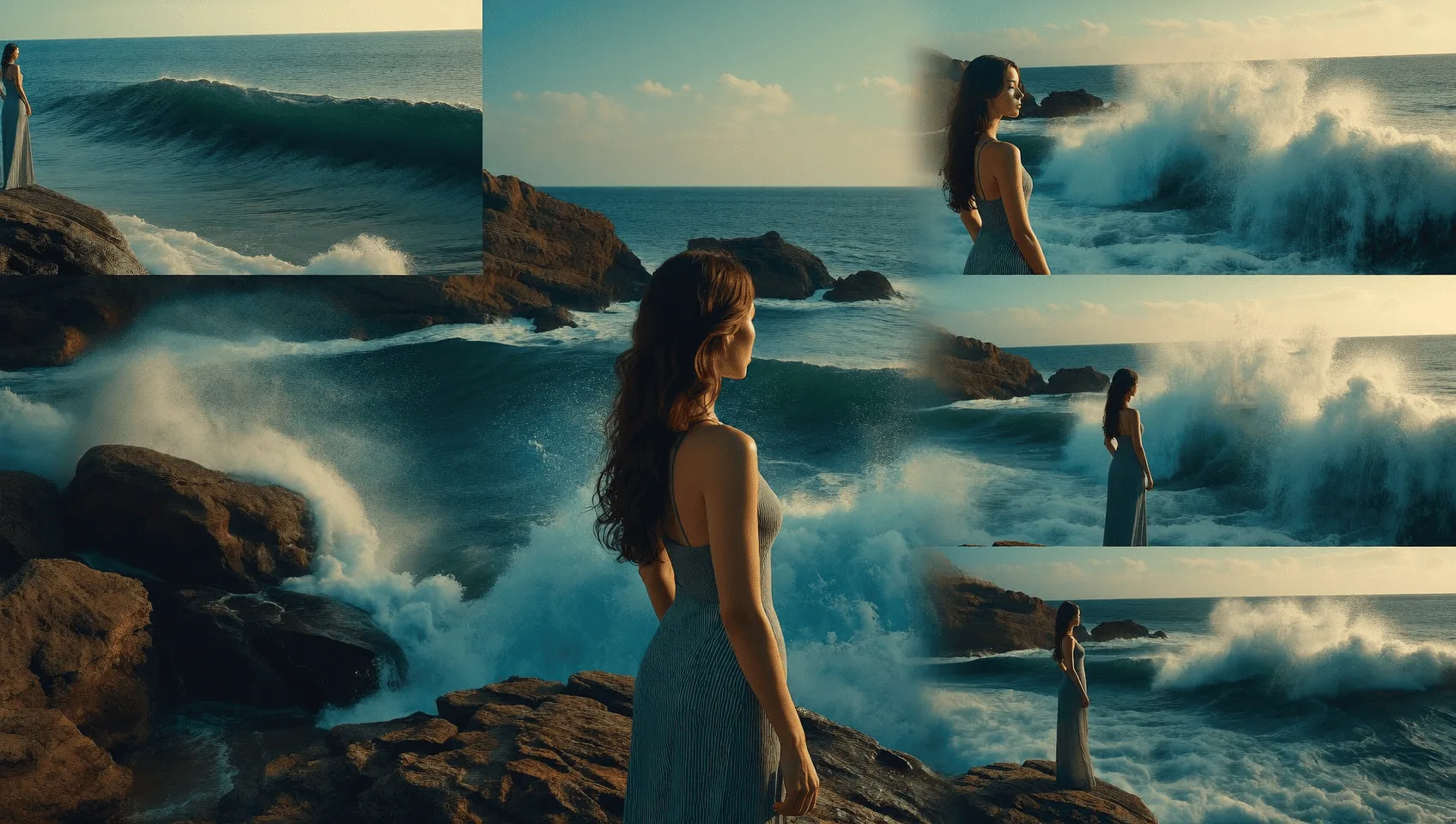
Anyone who edits videos knows the moment. You have the perfect shot, the light is right, the movement is right, and then it just stops. Two seconds too early. The voiceover runs longer than the clip, the music needs another beat, and the only footage you have is a little too short to hold it.
Most of the time, people solve that with a freeze frame, a slow fade or a quick cut to something less good. None of those feel great. An AI Video Extender handles it differently, and Higgsfield has one that adds natural new seconds before or after a clip, so the shot simply keeps going.
It sounds like a small thing. For anyone who makes videos regularly, it is one of the most common headaches there is.
Why Do Good Clips Always End Too Soon?
Because most footage is captured in a rush. You hit a record late, stop early, or the moment you wanted only lasted a breath. AI generated clips have their own version of the problem, since most models produce short clips, usually somewhere between four and fifteen seconds.
That causes trouble in a few familiar places:
- A voiceover that runs long. The narration needs eight seconds, the shot gives you five.
- Music edits. The beat drops just after your clip ends.
- Platform minimums. Some formats want a clip of a certain length before it looks right.
- Transitions. You need a little extra footage at the start or end to blend into the next shot.
- Background loops. Website headers, shop screens and event displays all need footage that runs longer than a few seconds.
Every editor has a stack of almost usable clips for exactly these reasons.
What Does an AI Video Extender Actually Do?
An AI Video Extender looks at your clip, reads the motion, subject and style, and then generates new frames that continue it. Not a frozen last frame, not a stretched replay, but genuinely new movement that carries on from where the clip ended.
On Higgsfield, this lives inside Cinema Studio and works in two directions:
- Extend Forward adds new seconds after your clip ends, so the action continues.
- Extend Backward adds new frames before your clip starts, giving you a lead in.
You can do both, one after the other, and repeat the process to build a scene of up to 30 seconds. You can also guide the extension with a short prompt, so the continuation goes where you want it to, for example “the camera keeps drifting left as the waves roll in”.
According to its product page, the extension keeps the lighting, colour and style of your original, and tries to keep the subject looking the same across every added second.
Does It Work on Real Footage or Only AI Clips?
Both, with a little caution on real footage.
AI generated clips are the most natural fit, since they are usually short and the extension can follow the same style closely. For filmed footage, the Higgsfield page says it often works, but that results depend on the clip and you should preview before downloading.
In practice, these kinds of real shots tend to extend well:
- Landscapes, skies and water
- Slow camera moves through a room or along a street
- Product shots on a table or turntable
- Ambient city scenes without close faces
Shots with fast, complex action or very detailed close ups are harder, and may need a couple of tries.
What Should You Never Use It For?
This matters more on a site that covers real people every day.
An AI Video Extender generates new footage. That means it can, in theory, make someone appear to keep doing something they never actually did. Used carelessly with footage of real people, that becomes misleading very quickly.
A few clear rules keep it on the right side of the line:
- Do not extend footage of celebrities or public figures to show actions or moments that did not happen
- Do not extend interview clips, news footage or anything presented as a record of real events
- Only extend footage of people who have agreed to it, ideally yourself
- Never use it on footage of children
- Label extended clips when they could be mistaken for unedited footage
There is a big difference between adding three seconds of drifting clouds to your own travel shot and adding three seconds of a famous actor doing something they never did. The first is editing. The second is fabrication.
Who Actually Uses It?
Mostly people who make a lot of short video and keep running into the same length problems, which an AI Video Extender is built to solve:
| Who | What they extend | Why |
| YouTubers and vloggers | B roll of places, cars, food and scenery | To cover voiceovers without awkward cuts |
| Social media managers | Product shots and short promos | To meet length and pacing needs |
| AI video creators | Short generated clips | To turn a few seconds into a full scene |
| Video editors | Shots that end too soon for a transition | To avoid reshooting |
| Shops, venues and websites | Ambient background clips | To run longer on screens and headers |
Creator careers are built on consistency, and the creators who post regularly are usually the ones who have found ways to avoid reshooting every small gap. If you follow how YouTubers turn their channels into businesses, such as this look at Mat Armstrong’s net worth, you will notice how much of that success comes down to steady output rather than one viral video.
How Do You Extend a Clip Step by Step?
The process is simpler than most people expect:
- Pick the clip that is too short. A shot you generated, or filmed footage you own.
- Open Cinema Studio on Higgsfield and add the clip.
- Choose Forward or Backward Extend, depending on whether you need more at the end or the beginning.
- Write a short prompt describing what should happen next, such as “the car keeps driving slowly toward the bridge”.
- Generate and preview the result carefully, especially where the old clip meets the new seconds.
- Repeat if you need more length, up to a scene of 30 seconds.
- Download the extended clip and trim it to the exact length in your usual editor.
That last step is worth knowing in advance. The extender does not hit an exact second count. You extend in steps and then trim, the same way you would with any raw footage.
What Makes a Good Extension Prompt?
Short, specific and consistent with what is already happening. The extension works best when you ask it to continue the clip, not change it completely.
Some examples:
- “The waves keep rolling onto the sand as the camera slowly pulls back.”
- “Steam continues rising from the coffee cup while the light warms slightly.”
- “The city traffic keeps moving below as the camera holds steady on the skyline.”
- “The cyclist continues down the empty road toward the hills, camera following from behind.”
A few things to avoid:
- Asking for a sudden new event that does not fit the shot
- Changing the weather or time of day halfway through
- Introducing new people into a scene that had none
- Describing lots of actions at once
Think of it as asking the camera to keep rolling for a few more seconds, not as starting a new scene.
Can It Help With Background Video for Websites and Venues?
Yes, and this is one of the quieter but most practical uses. Plenty of businesses need calm, slow footage that runs for longer than a typical clip: a hotel lobby screen, a restaurant window display, a website header, or the big screen behind a stage before an event starts.
Most of the time, the footage they have is short. A ten second shot of waves, a few seconds of a candle flickering, a brief pan across a city at night. An AI Video Extender can stretch that kind of footage into a longer, more usable scene by continuing the motion naturally in either direction.
Some background ideas that extend well:
- Clouds drifting slowly over a skyline
- Gentle waves on a beach at sunset
- Rain on a window with soft lights behind it
- A slow pan across a cosy café interior with nobody in shot
- Leaves moving in a light breeze
The calmer the original shot, the better the result tends to be. Fast cuts and busy scenes are harder to continue convincingly, while slow, steady motion gives an AI Video Extender plenty to work with.
Because there is no dedicated loop feature, the usual approach is to extend the clip to a comfortable length and then let the display or website player restart it. A soft fade at the join in your editor makes the restart far less noticeable.
What Are the Honest Limits?
It is a genuinely handy tool, but it is not magic, and it helps to know where it stops.
- It adds time, not frame area. If you need a wider or taller image, that is a different job.
- No exact lengths. You extend in steps and trim afterwards.
- No dedicated loop feature. You can extend a background clip, but a perfect loop with no visible join is not a built-in feature.
- Real footage varies. Some clips extend beautifully, others need several tries.
- Quality follows the original. A blurry starting clip will not suddenly become sharp.
Higgsfield sits within a wider AI creative suite, but the extender itself does one focused job: making a short shot last a little longer without a reshoot. Treat it that way and it rarely disappoints.
How Can Creators Build It Into Their Workflow?
The easiest way is to stop treating short clips as rejects. Keep a folder of shots that are almost perfect but end too soon, and run them through an AI Video Extender when you need them.
A simple routine for a weekly video might look like this:
- Film or generate your main footage as usual
- Edit the video and note every gap where a shot runs short
- Extend only those shots, rather than everything
- Preview each extension at full size before dropping it into the timeline
- Keep a note of which kinds of shots extend well, so you plan for them next time
Over a few weeks, you start filming with extension in mind: holding a steady camera on calm scenes, avoiding sudden movement at the end of a shot, and leaving a little room for the AI Video Extender to continue the motion naturally.
Higgsfield runs in your browser, so most creators simply keep it open alongside their editor and extend shots as the need comes up.
Frequently Asked Questions
What is an AI Video Extender?
It is a tool that makes a video clip longer by generating natural new frames before or after it, continuing the motion, subject and style of the original.
Does it just freeze the last frame?
No. It generates new movement that continues the scene, rather than freezing or stretching the final frame.
How long can an extended clip be?
On Higgsfield, you can extend step by step to build a scene of up to 30 seconds.
Can I extend my own filmed footage?
Often, yes. Results depend on the clip, so preview before downloading. Calm scenes, landscapes and slow camera moves usually work best.
Can I extend videos of celebrities or other people?
You should not extend footage of real people to show things that did not happen. Only extend footage you own, of people who have agreed to it.
Can it make a perfect loop?
Not as a dedicated feature. You can extend a clip forward or backward, but a perfect loop with no visible join is not built in.
Conclusion
Every editor has a folder of shots that are nearly right, beautiful clips that end one beat too soon. For years, the only options were a freeze, a fade or a reshoot.
An AI Video Extender offers a quieter fix. Add a few natural seconds to the start or end, keep the motion flowing, and let the edit breathe. Use it on your own footage and your own ideas, keep real people’s moments real, and it becomes one of those small tools you wonder how you managed without. Higgsfield has made that extra few seconds easy to find.